
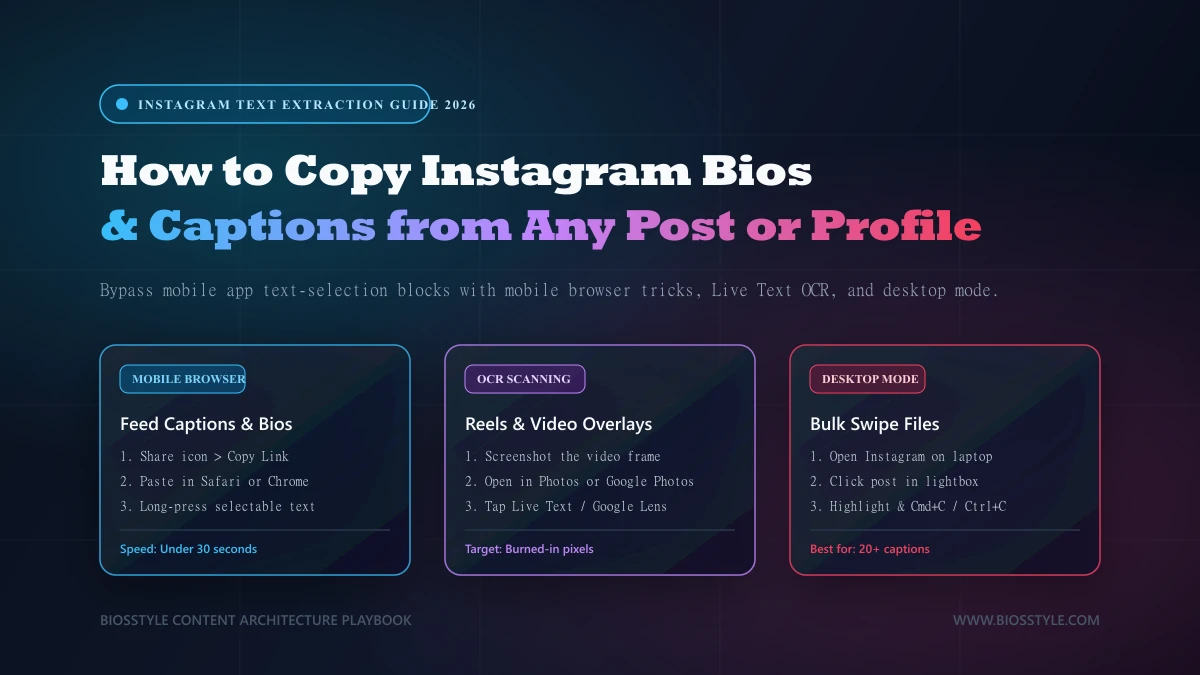
1. Step 1: Copy Instagram Captions Using a Mobile Browser
If you have ever tried to copy Instagram captions directly in the app, you already know the frustration — tapping and holding a caption does nothing useful. Learning how to copy Instagram captions starts with understanding why the app blocks text selection in the feed: it renders captions as interface elements, not selectable web text.
The fix is straightforward. Knowing how to copy text from Instagram means switching to a mobile browser, where the same caption becomes ordinary, highlightable text. Ensure the post is public — private accounts will not load in a logged-out browser session, so log into Instagram in your browser first if the post is from an account you follow.
Follow these four simple steps on iPhone Safari or Android Chrome:
If your mobile browser automatically bounces you back into the Instagram app, open the link in a private or incognito tab instead. Incognito mode ignores deep-linking redirects and forces the web interface to display.
- 1. Open the post in the Instagram app and tap the paper-plane Share icon below the image.
- 2. Tap Copy Link. A confirmation toast appears at the bottom of the screen, which means the URL is now on your clipboard.
- 3. Open Safari or Chrome, tap the address bar, paste the link, and load the page. The post appears in the web layout with the caption displayed as text.
- 4. Press and hold anywhere in the caption, drag the selection handles to cover the full text, then tap Copy.
2. Step 2: Extract Bio Text from Any Profile
A bio may be short, but it is easy to underestimate. It also carries disproportionate weight: industry research demonstrates that users decide whether to follow a profile within a window of just one to five seconds, making it a critical digital business card.
That is why creators study bios they admire — line breaks, emoji placement, the order of the hook, and the call to action. Knowing how to copy an Instagram bio lets you study the structure rather than squint at a screenshot.
If you are looking to design a fresh profile header from scratch without manually copying competitors line-by-line, test our interactive AI Instagram Bio Generator with Fonts and Live Preview to preview your text in real time.
Multi-line bios lose their line breaks in some mobile browsers upon copying. Paste the text into your phone's Notes app immediately and re-add the line breaks while the original profile is still visible on screen.
- 1. Open the target profile in the Instagram app and tap the three-dot menu in the top right corner.
- 2. Tap Copy Profile URL. The screen displays a brief confirmation that the link has been copied.
- 3. Paste the URL into Safari or Chrome and load the web profile. The bio appears beneath the username as plain selectable text.
- 4. Long-press the bio text, drag the highlight handles across every line, and tap Copy.
3. Step 3: Copy Text from Reels and Stories via OCR
Text burned into a video frame or a Story sticker is not text at all — it is pixels. No browser trick will select it.
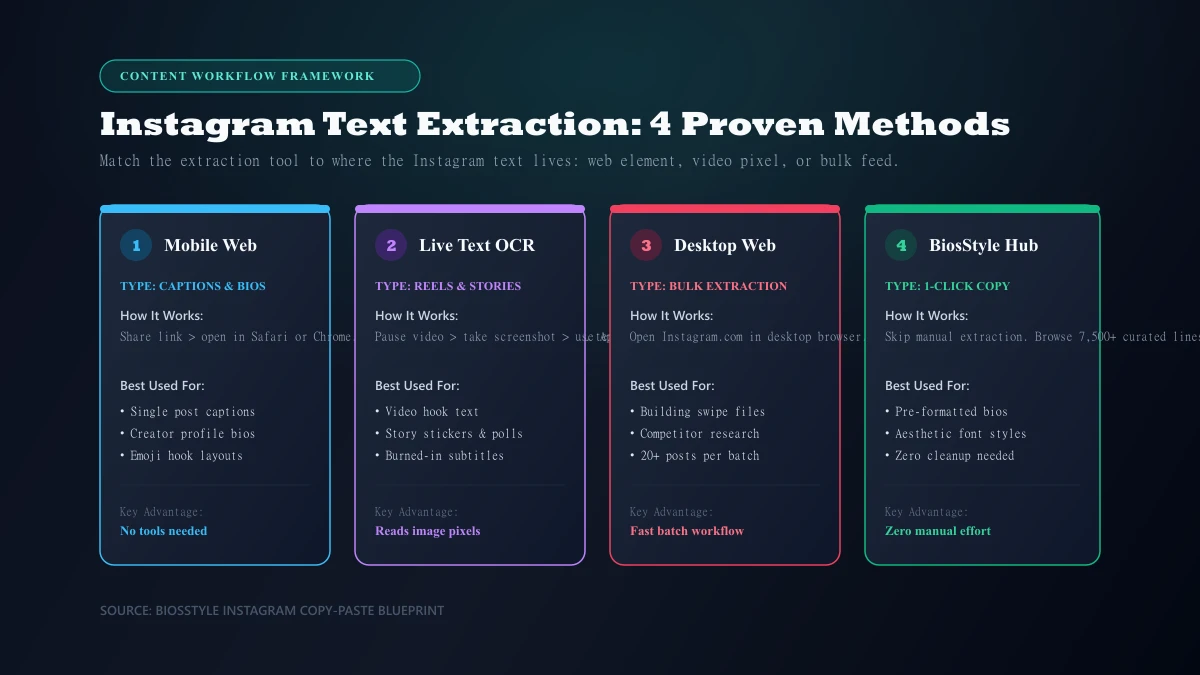
OCR (Optical Character Recognition) — a technology that converts images of text into editable characters — solves this problem. Built-in smartphone features like Apple Live Text on iOS and Google Lens on Android use OCR to turn visual pixels into editable clipboard text. This method allows you to copy an Instagram Reel caption or hook overlaid directly on video.
Low-contrast captions — such as thin white text over a bright sky or busy background — often scan with character errors. To prevent mistakes, screenshot a video frame where the background is darker, or crop tightly around the text block in your gallery before running the OCR scan.
- 1. Pause the Reel or Story on the exact frame displaying the text, then capture a screenshot.
- 2. Open the screenshot in Apple Photos on iPhone or Google Photos on Android.
- 3. Tap the Live Text icon in the lower right corner on iPhone, or tap the Google Lens icon on Android. Detected words will receive a faint highlight box.
- 4. Drag your finger across the highlighted text block and tap Copy.
4. Step 4: Use Desktop Mode for Bulk Caption Extraction
Copying a single caption on a phone is manageable. Copying twenty for a research swipe file is tedious. On a desktop browser, every Instagram caption is already selectable, with no link-copying or app-switching between each post.
This allows you to work through an entire creator profile grid in a single seamless session. This capability is also rooted in web standards: W3C accessibility guidelines require that images of text provide accessible text alternatives, making desktop browsers the most open environment for reading Instagram content.
When you finish copying, simply close the lightbox by clicking the X icon and click the next post. The lightbox overlay keeps you anchored on the profile grid so you never lose your place.
- 1. Log into Instagram.com in Chrome, Safari, or Firefox on a laptop or desktop computer.
- 2. Navigate to the profile and click a post to open it in the lightbox overlay view, where the caption displays directly to the right of the media.
- 3. Click with your mouse at the start of the caption and drag to the end. The text highlights in blue.
- 4. Right-click and choose Copy, or press Cmd + C on Mac or Ctrl + C on Windows.
5. How to Master Instagram Copy-Pasting: Key Takeaways
Knowing how to copy text from Instagram comes down to picking the right tool for where the text lives. Captions and bios are best accessed in a mobile browser. Text embedded in video requires an OCR scan. Everything else is formatting cleanup.
If you are working out how to copy an Instagram caption on iPhone specifically, the Share icon and Safari combination handles it in under thirty seconds, and the same two taps cover Android devices.
Rather than spending hours manually harvesting profile lines one by one, you can skip the search entirely. BiosStyle maintains a verified library of over 7,500+ curated assets with instant 1-click copy:
Browse our curated Instagram Bio Hub, explore Instagram Bio for Girls, or discover viral Instagram Bio for Boys.
Looking for post captions? Explore our Aesthetic Captions Library or browse the full Captions Directory. You can also craft custom Unicode text with our Mastering Text Generator Font Guide or generate viral bios with our new AI Instagram Bio Generator.
- Browsers bypass app-level restrictions: The web version of Instagram renders captions and bios as native selectable HTML text, which the mobile app deliberately disables.
- OCR is the answer for Reels and Stories: Live Text on iOS and Google Lens on Android accurately read text from video pixels that no selection handle can reach.
- Check formatting after pasting: Line breaks and emoji spacing frequently shift during clipboard transfer, so paste into a notes app and check structure before publishing.
- Skip the profile-by-profile search: Browse BiosStyle for 7,500+ pre-formatted, 150-character safe bios, captions, and usernames ready for instant 1-click copy.